
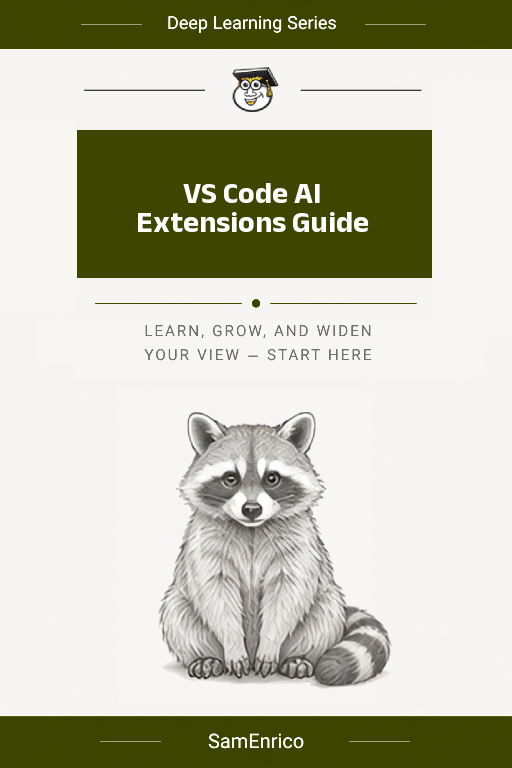
VS Code AI Extensions Guide Audiobook
Install and configure AI coding assistants in your
Install and configure AI coding assistants in your Visual Studio Code editor.
Formats
Free sample
Chapter 1: The Digital Workbench–- Every craftsman knows that a cluttered bench breeds mistakes. For the modern developer working with AI, this ancient truth has never been more urgent. You are about to invite artificial intelligence into the most intimate corners of your coding environment—your editor, your shortcuts, your muscle memory. If that environment is chaotic, the AI will learn your chaos. If it is slow, the AI will become sluggish. If it is riddled with conflicting extensions, the AI will hallucinate, misfire, and frustrate you to the point of abandonment. This chapter is not about installing AI. It is about preparing sacred ground.The Clean Slate Philosophy: Why Starting Fresh Wins Most developers accumulate VS Code extensions like winter coats. You installed that Python formatter two years ago for a single project. You enabled that rainbow-colored bracket highlighter because it looked cool on Twitter. You left that deprecated Live Server extension running because you forgot it existed. These are "zombie extensions"—undead pieces of code that consume memory, fire background processes, and create subtle conflicts that manifest only when you least expect them.AI extensions are uniquely sensitive to this chaos. Unlike a simple syntax highlighter, AI tools like Copilot, Continue, and Cline perform real-time inference. They scan your open files, analyze your cursor position, and query language models. Every zombie extension running alongside them competes for CPU cycles, memory bandwidth, and event listeners. The result? Latency spikes, incomplete suggestions, and the dreaded gray spinning wheel where your autocomplete should be.The Clean Slate Philosophy is simple: treat your VS Code installation like a surgical theater. Before you bring in the AI tools, sterilize the environment. This does not mean uninstalling everything—it means auditing intentionally. A five-step process will transform your editor from a cluttered garage into a precision workshop.Step one, disable all non-essential extensions. Navigate to the Extensions view (Cmd+Shift+X on mac OS, Ctrl+Shift+X on Windows/Linux) and click the gear icon next to each extension. Select "Disable" rather than "Uninstall" initially. This preserves your settings if you change your mind but removes the extension from active memory. Pay special attention to extensions that perform background analysis: linters, formatters, test runners, and live preview tools. These are the most likely to conflict with AI inference engines.Step two, profile your startup time. Open VS Code's built-in Developer Tools (Help > Toggle Developer Tools then click the "Performance" tab). Record a startup profile and look…
This is the end of the free sample. Get the Audiobook to keep going. Buy now
About this book
Details
- Author
- Crawley Nicolette
- Publisher
- SamEnrico
- Language
- English
- Genre
- Non-Fiction, AI Operator
- Released
- 2026-05-30
- Pages (approx.)
- 149
- Available as
- eBook, Audiobook

Listen in the VoxFlicks app
Audiobooks and audio dramas wherever you go. Sign in with your SamEnrico account and press play.
More by Crawley Nicolette
 Contract Abstraction for ComplianceCrawley Nicolette$11.99
 Star Knowledge Spiritual GuideCrawley Nicolette$11.99
 Imposter Racial Minority GuideCrawley Nicolette$11.99
 Post Learning Nap GuideCrawley Nicolette$11.99
 Daily Benefit Amount GuideCrawley Nicolette$11.99
 Long Breath vs Short Breath NoticeCrawley Nicolette$11.99
 Parent Time PodcastsCrawley Nicolette$11.99
 Holocaust Survivor TaleCrawley Nicolette$11.99
 Affirmations For Tech BurnoutCrawley Nicolette$11.99
 The Golden Notes of the Kingdom: The Court Musicians of AxumCrawley Nicolette$11.99
 The Phantom of the Viennese Court: Mozart's Lost SymphonyCrawley Nicolette$11.99
 The Last Broadcast: The Rise and Fall of Radio LuxembourgCrawley Nicolette$11.99
You may also like
 Hong Kong Handover 1997Dunn Johnnie$11.99
 Zumba For Postnatal Recovery CourseNeal Christian$11.99
 Zumba for BeginnersLadner Nikia$11.99
 YouTube Comment Mining GuideHumes Pandora$12.99
 Worry Box MeditationCarlin Rudy$11.99
 Workplace Stress MeditationNguyen Lynn$11.99
 Workplace Stress and Sleep RepairHawley Ivory$11.99
 Workplace Perfectionism CureDelaney Jeffry$11.99
 Workplace Injustice Anger GuideWallen Isabelle$11.99
 Work Addiction and Burnout LinkGreenwood Ester$11.99
 Women in Yoga and WellnessBeattie Galina$11.99
 Women in Stand Up ComedyChun Evangeline$11.99