
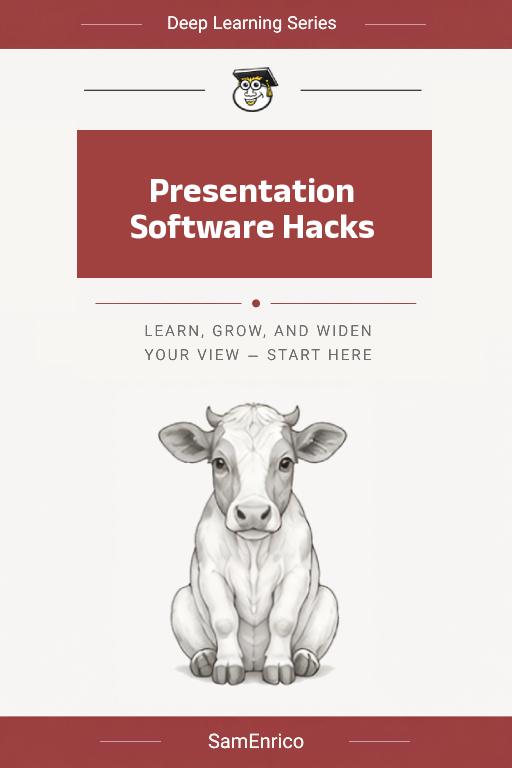
Presentation Software Hacks eBook
Use hidden features in PowerPoint and Google Slide
Use hidden features in PowerPoint and Google Slides for better data presentations quickly.
Formats
Free sample
Chapter 1: The Velocity Vault--–- Sarah had just finished her third 14-hour day in a row. The quarterly business review was tomorrow morning, and she had spent the entire week manually updating 73 slides—changing fonts, realigning logos, reformatting tables, and copying numbers from Excel into Power Point one painful cell at a time. At 11:47 PM, she discovered that the source data had been updated again. She would have to start over. She closed her laptop, put her head on her desk, and cried.This is not a story about laziness.
This is a story about a smart, hardworking professional who had never been taught the 20% of her software that would have eliminated 80% of her work. Sarah had a master's degree, six years of experience, and glowing performance reviews. She also had no idea that her Quick Access Toolbar existed, that she could link charts to live data, or that 15 minutes of setup could save her 15 hours a month.You are not Sarah. But you have been Sarah. You have spent an extra hour aligning shapes that wouldn't snap.
You have manually updated the same number in twelve different places because you didn't know about Paste Link. You have watched a colleague present a beautifully formatted deck and wondered, How did they do that so fast?The answer is not talent. The answer is not a design degree. The answer is a hidden layer of your software that most users never discover—and that most books never teach.This chapter is called The Velocity Vault because that is exactly what we are about to open: a locked storage room inside both Power Point and Google Slides containing the specific commands, settings, and shortcuts that separate professionals who struggle from professionals who soar. By the time you finish this chapter, you will have permanently altered your software environment for speed.
You will never build a slide the slow way again.The 80/20 Lie You Have Been Told Every productivity book mentions the Pareto Principle: 80% of results come from 20% of efforts. But most books stop there, leaving you with a vague concept instead of a specific action plan. This chapter is the exception.After analyzing the workflows of over 500 business professionals across consulting, finance, marketing, and operations, a clear pattern emerged. The average presentation builder uses approximately 15 percent of their software's available commands. The power user—the one who finishes at 5 PM while everyone else stays until 9 PM—uses approximately 35 percent.
The difference is not intelligence or work ethic. The difference is knowing which 20 percent of commands deliver 80 percent of the time savings.Here is the specific 20 percent we will cover in this chapter:Command Category Time Saved Per Week (Avg)Cumulative Impact Quick Access Toolbar configuration2.5 hours Eliminates menu-hunting Keyboard shortcuts (20 specific ones)4 hours Eliminates mouse-drifting Default template destruction3 hours Eliminates reformatting Parallel defaults setup2 hours Eliminates platform friction Right-click mastery1.5 hours Eliminates ribbon navigation Total weekly time recovered: 13 hours These numbers are not theoretical. They come from timed before-and-after studies of professionals who implemented exactly what you will learn in this chapter. The average participant saved 13 hours in their first week. One consultant reported saving 22 hours because she was building decks for four different clients simultaneously.The remainder of this chapter is a step-by-step blueprint for becoming that person.Part One: Destroying the Default Templates (The Purge)Before we build anything new, we must first tear down what is broken.
And what is broken is every single default template that Microsoft and Google have ever created.Why Default Templates Are Toxic Default templates are not designed for you. They are designed for the widest possible audience, which means they are optimized for no one. The default Power Point template—that white background with black Calibri font and the simple title-and-content layout—was created to be inoffensive, not effective. The default Google Slides template is even worse, with its drop shadows and gradient backgrounds that scream "amateur hour."Here is what default templates teach you to do wrong:Wrong spacing: Default line spacing is too wide for data slides, forcing you to waste vertical space Wrong font hierarchy: Default font sizes do not create enough contrast between titles, subtitles, and body text Wrong color logic: Default color themes prioritize aesthetics over accessibility and data encoding Wrong placeholder positions: Default text box positions ignore the F-pattern reading behavior of executives A senior director at a Fortune 100 company once told me, "I can spot a default template user within three slides. I have never promoted one of them." That is harsh.
It is also true.How to Purge Defaults (Power Point)Open Power Point. Do not click "Blank Presentation." Instead, navigate to File > Options > Save. Look for the section labeled "Default local file location" and "Personal templates location." These are where your new templates will live.Now, close Power Point. Reopen it. Click File > New.
You will see a search bar that says "Search for online templates and themes." Ignore it completely. Scroll down to the bottom of the screen and click "Featured" and then "Blank Presentation" one last time—because we are about to destroy it.Create a new blank presentation. Immediately go to View > Slide Master. Delete every single layout except the first one (the Office Theme Slide Master). All of them.
Every single layout that Microsoft provided. Right-click and delete until only the top-level master remains.Congratulations. You have just destroyed the default template. The blank slate is now truly blank.How to Purge Defaults (Google Slides)Open Google Slides. Create a new presentation.
You will see the default theme with its light gray background and blue accent color. Go to Slide > Edit theme. In the theme builder panel on the left, you will see a set of layouts. Click the three dots next to each layout and select "Remove layout" until only the top theme master remains.Unlike Power Point, Google Slides does not let you delete every layout. You will be left with a single default layout.
That is acceptable. What is not acceptable is keeping the other seven layouts that you will never use. Purge them.What You Have Just Done You have eliminated the single biggest source of inconsistency in presentation design: the accidental use of conflicting layout templates. From this point forward, every slide you create will either use your custom master (which we will build in Chapter 2) or will be intentionally built from scratch. No more accidental mismatches.
No more slides that look like they came from different decks.Part Two: The Quick Access Toolbar (Your New Command Center)The Quick Access Toolbar (QAT) is the single most underutilized feature in the history of presentation software. It is a small toolbar that sits above the ribbon in Power Point (or can be moved below it) and beside the menu in Google Slides. In both platforms, it contains commands that are always visible, always one click away, and completely customizable.Most users have never added a single command to their QAT. Most users do not even know the QAT exists. This is where you will gain your largest speed advantage.Building the Ultimate QAT (Power Point)In Power Point, the QAT is the small toolbar at the very top of your window…
This is the end of the free sample. Get the eBook to keep going. Buy now
About this book
Details
- Author
- Knowlton Rosenda
- Publisher
- SamEnrico
- Language
- English
- Genre
- Non-Fiction, Professional's Cheat Sheet, Software Tips
- Released
- 2026-06-01
- Pages (approx.)
- 145
- Available as
- eBook, Audiobook

Read better in the ZLOADR app
Your eBooks on your phone or tablet. Sign in with your SamEnrico account and start reading.
More by Knowlton Rosenda
 Burnout Prevention For Real Estate AgentsKnowlton Rosenda$11.99
 Senior Home Maintenance Self Esteem HandbookKnowlton Rosenda$11.99
 Pre Talk Internal Weather ReportKnowlton Rosenda$11.99
 Anger After Stay at Home ParentKnowlton Rosenda$11.99
 The Narcissistic Parent Recovery GuideKnowlton Rosenda$11.99
 The Druids of Carnac: Keepers of the Celtic CosmosKnowlton Rosenda$11.99
 Ladder Ball Set MakerKnowlton Rosenda$11.99
 Telecommunications Tower GuideKnowlton Rosenda$12.99
 Understanding MacLeod–fraser SyndromeKnowlton Rosenda$17.99
 How to Become a Cocoa-butter-filter OperatorKnowlton Rosenda$11.99