
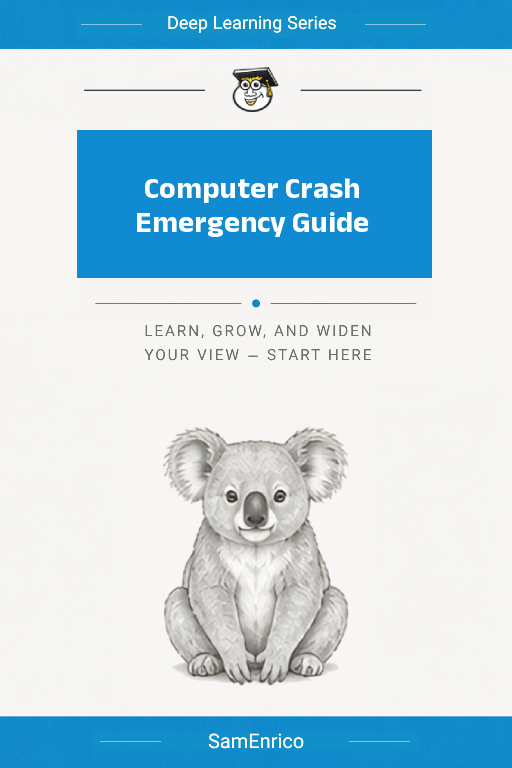
Non-FictionStudent's ShortcutComputer CrashEmergency Guide
Computer Crash Emergency Guide eBook
Handle computer crash during online proctored exam
Handle computer crash during online proctored exam with restart procedures proctor notification and exam continuation.
Formats
Free sample
Chapter 1: The $900 Click--It happens in less than a second. One moment, you are reading Question 47. You have been studying for three months. You paid $900 for this certification exam because your promotion depends on it. The next moment, the screen freezes.
Your cursor becomes a spinning rainbow wheel on a Mac or a blue circle on Windows. Your heart stops. Your brain screams one word: No.You do what anyone would do. You click the mouse. You click again.
You press the Escape key. You tap the spacebar. You whisper, "Come on, come on, come on." And in that moment of panic, you make a mistake that costs you everything. The proctoring software registers your frantic clicks as an attempt to exit the exam. The system flags you for "erratic input behavior." A message appears: Your exam has been terminated.
Please contact support.Three months of studying. Nine hundred dollars. Your promotion. Gone because you clicked a mouse.This book exists to ensure that never happens to you again.The Myth of the Random Crash Let us start with a truth that will shock you: most computer crashes during online proctored exams are not random accidents. They are predictable, preventable, and often scheduled by your own computer without your knowledge.When a computer crashes during a high-stakes exam, we tend to blame fate.
"Bad luck," we say. "The universe was against me." But the data tells a different story. Pearson VUE, which administers millions of proctored exams annually, tracks technical interruption rates across their platforms. According to their internal metrics, approximately one percent of all exams experience a technical disruption. That sounds small until you do the math.
For a certification body like Microsoft or Comp TIA, one percent represents tens of thousands of ruined exam attempts every single year.Here is what Pearson VUE discovered when they analyzed those crashes. The vast majority were caused by three things: background processes running automatic updates, Wi Fi interference, and outdated device drivers. In other words, the crashes were not random. They were the inevitable result of an unprepared environment.Let me give you a concrete example. Windows Update is designed to run automatically in the background.
It checks for updates, downloads them, and sometimes forces a restart. If you have never disabled this feature, your computer will eventually restart itself without asking for permission. Now imagine that restart happens while you are answering Question 47 of a proctored exam. The proctor sees your screen go black. The system records a disconnection.
You are marked as having "left the exam environment." Your $900 is gone, and Windows Update is the culprit.The same logic applies to Wi Fi. Your home Wi Fi network is subject to interference from microwave ovens, baby monitors, neighboring networks, and even the physical distance between your laptop and your router. A single packet loss during a handshake between your computer and the proctoring server can trigger a disconnection. The proctoring software does not distinguish between "Wi Fi interference" and "user attempted to cheat by disconnecting." It simply records a failure.The good news is that every single one of these crash causes is preventable. You do not need to be a computer technician.
You do not need to buy expensive equipment. You need a checklist and ten minutes of focused preparation. That is what this chapter delivers.The 10-Minute Clean Boot Procedure The term "clean boot" comes from enterprise IT support. It means starting your computer with only the essential operating system services running and nothing else. No Dropbox syncing in the background.
No Slack notifications. No antivirus scanning. No Zoom updater checking for new versions. Just you, the operating system, and the proctoring software.Here is the step-by-step procedure. Perform this exactly ten minutes before you plan to log into your exam.
Do not do it the night before. Do it immediately before the exam because background processes have a nasty habit of restarting themselves after updates.Step 1: Restart your computer fresh. Not shut down and turn on. Restart. On Windows, click the Start button, then the power icon, then Restart.
On Mac, click the Apple menu, then Restart. This clears the system memory and terminates any stuck processes.Step 2: Open Task Manager (Windows) or Activity Monitor (Mac). On Windows, press Control + Shift + Escape. On Mac, press Command + Space, type "Activity Monitor," and press Enter.Step 3: Identify and kill unnecessary processes. Look for these specific applications in the list: Zoom, Slack, Discord, Dropbox, Google Drive, One Drive, Spotify, Adobe Creative Cloud, any antivirus software (yes, even that), any printer software, any messaging app, any browser other than the one you will use for the exam.
Right-click each one and select "End Task" (Windows) or select it and click the X button (Mac).Step 4: Disable automatic updates. On Windows: Open Settings > Windows Update > Pause updates for 7 days. On Mac: Open System Settings > General > Software Update > turn off "Download new updates when available."Step 5: Kill background browser processes. Even if you close your browser, background processes may remain. In Task Manager or Activity Monitor, look for anything labeled Chrome, Firefox, Edge, or Safari.
End those tasks as well.Step 6: Verify your network. Plug in your Ethernet cable now. Do not wait. Disable Wi Fi completely. On Windows: Click the network icon in the taskbar, click Wi Fi, turn off.
On Mac: Click the Control Center icon, click Wi Fi, turn off.Step 7: Launch the proctoring software fresh. Do not reopen any other applications. Do not check your email. Do not open Spotify. Launch only the proctoring software and your exam browser.Step 8: Run the system check.
Every proctoring platform has a pre-exam system check. Run it. If it fails any test, do not proceed. Fix the issue now.Step 9: Wait five minutes. Yes, wait.
This allows any delayed background processes to attempt to start and fail because you killed them. If something tries to restart, you will see it in Task Manager and can kill it again.This entire procedure takes less than ten minutes. It is the single most effective crash prevention measure you can take. And almost no one does it.Why Ethernet Beats Wi Fi by 80 Percent Let me be direct: if you take an online proctored exam over Wi Fi, you are gambling with your $900. I am not exaggerating.
The physics of wireless networking guarantee some level of packet loss. The question is not whether you will experience packet loss. The question is whether that packet loss happens during a critical authentication handshake with the proctoring server.Here is what happens during a Wi Fi connection. Your laptop sends a radio signal through the air to your router. That signal passes through walls, furniture, and sometimes other electronic devices.
Microwave ovens emit radiation in the same frequency range as 2.4 GHz Wi Fi. Baby monitors interfere. Your neighbor's streaming 4K movie interferes. Even the physical position of your laptop relative to the router affects signal strength.Now imagine the proctoring software performs a handshake with the server every few seconds. It sends a small packet of data saying, "I am still here, and the exam is still running." If that packet is lost due to interference, the server…
This is the end of the free sample. Get the eBook to keep going. Buy now
About this book
Details
- Author
- Burroughs Cristopher
- Publisher
- SamEnrico
- Language
- English
- Genre
- Non-Fiction, Student's Shortcut, Computer Crash, Emergency Guide
- Released
- 2026-05-30
- Pages (approx.)
- 134
- Available as
- eBook, Audiobook

Read better in the ZLOADR app
Your eBooks on your phone or tablet. Sign in with your SamEnrico account and start reading.
More by Burroughs Cristopher
 Mealtime Phone Free GuideBurroughs Cristopher$11.99
 Private Equity Buyout StructuresBurroughs Cristopher$11.99
 Hearing Tests at Home GuideBurroughs Cristopher$11.99
 Parental Addiction and DatingBurroughs Cristopher$11.99
 Smoking Cessation for Cancer SurvivorsBurroughs Cristopher$11.99
 The Unseen Architect: How One Woman Quietly Built the InternetBurroughs Cristopher$11.99
 The Nile's Hidden Heart: The Forgotten Explorers of the 18th CenturyBurroughs Cristopher$11.99
 Understanding Carotid Artery DissectionBurroughs Cristopher$17.99
 UK Business Credit HandbookBurroughs Cristopher$12.99
 Strategic Publisher Account ManagerBurroughs Cristopher$11.99
 How to Start a Potato Products (wholesale) Business (Beginners Guide)Burroughs Cristopher$11.99
You may also like
 Hong Kong Handover 1997Dunn Johnnie$11.99
 Zumba For Postnatal Recovery CourseNeal Christian$11.99
 Zumba for BeginnersLadner Nikia$11.99
 YouTube Comment Mining GuideHumes Pandora$12.99
 Worry Box MeditationCarlin Rudy$11.99
 Workplace Stress MeditationNguyen Lynn$11.99
 Workplace Stress and Sleep RepairHawley Ivory$11.99
 Workplace Perfectionism CureDelaney Jeffry$11.99
 Workplace Injustice Anger GuideWallen Isabelle$11.99
 Work Addiction and Burnout LinkGreenwood Ester$11.99
 Women in Yoga and WellnessBeattie Galina$11.99
 Women in Stand Up ComedyChun Evangeline$11.99