

Non-FictionFirst 30 DaysBookkeeping
QuickBooks Bill Pay Guide eBook
Enter and pay bills in QuickBooks. Track vendor ba
Enter and pay bills in QuickBooks. Track vendor balances, due dates, and payment approvals.
Formats
Free sample
Chapter 1: The Vendor Vault...--–- Most business owners never realize that their vendor list is actually their most underutilized financial asset. They treat it like a digital Rolodex – a place to store a name, a phone number, and maybe an email address. Then they wonder why bill payments are always late, why 1099 season feels like a root canal, and why their accountant sends back spreadsheets covered in red ink. The truth is simpler and more painful: your vendor records are the foundation upon which every single bill payment rests. If that foundation is cracked, nothing else will stand straight.This chapter transforms your vendor list from a passive directory into an active control center – what we call the Vendor Vault.
You will learn how to create vendor records that automatically calculate due dates, map expenses to the correct accounts, prep you for 1099 filing with zero last-minute panic, and store critical operational data that purchasing teams actually use. By the time you finish this chapter, you will never look at a vendor entry screen the same way again.Why Most Vendor Lists Fail Before we build the Vault, let us diagnose what typically goes wrong. Walk into almost any small-to-medium business and pull their vendor list. You will find the same five pathologies:Duplicate entries – The same vendor appears as "AT&T," "ATT," "AT and T," and "AT&T Wireless" because different employees typed the name differently over the years. Each duplicate holds a separate balance, so you accidentally pay one and ignore the other.Missing tax information – The 1099 checkbox sits unchecked because nobody knew it existed.
Come January, you scramble to collect EINs from vendors who have already cashed your checks and moved on.Blank or incorrect terms – The "Payment Terms" field defaults to "Due on receipt" even though the vendor gives you Net 30. Your aging report shows every bill as overdue the moment you enter it, triggering unnecessary stress and premature payments.No account mapping – Every bill gets dumped into "Office Expenses" regardless of whether it was inventory, subcontractor labor, or a new computer. Your Profit & Loss statement becomes a black hole of miscategorized spending.Missing operational data – You cannot remember which vendors require a purchase order, which ones have insurance expiring next month, or which ones offer early payment discounts. That knowledge lives in someone's head, and when that someone leaves, the knowledge leaves with them.The Vendor Vault solves all five problems systematically. Let us build it.Step One: Creating the Vendor Record from Scratch Open Quick Books and navigate to the vendor list.
In Quick Books Online, click "Expenses" then "Vendors" then the green "New vendor" button. In Quick Books Desktop, click "Vendors" then "Vendor Center" then "New Vendor."You will see a form with fields that seem straightforward. Do not be fooled. Each field is a lever that controls downstream automation. Here is how to set each one correctly.Display Name vs.
Company Name Quick Books gives you two name fields. The "Company Name" is the legal entity – the name on the W-9, the name you write on checks, the name the IRS recognizes. The "Display Name" is what you see in drop-down menus and reports. Set both to the same value initially, but understand the distinction: if you work with a sole proprietor who does business as "Smith Consulting" but whose legal name is "Robert Smith," put "Robert Smith" in Company Name and "Smith Consulting" in Display Name. This keeps your 1099 accurate while making daily selection easy.Payment Terms: The Automation Engine Find the "Payment Terms" drop-down.
This single field determines when Quick Books marks a bill as overdue. The most common options are:Net 30 – Bill is due 30 days after the bill date. Use this for most trade vendors.Net 15 – Due in 15 days. Common for fast-turnaround services.Due on receipt – Due immediately. Use for utilities, rent, and vendors who will not extend credit.
Warning: this setting makes every bill appear overdue the day you enter it, which clutters your aging report.Prepayment – You pay before receiving goods or services. Rare, but select this if the vendor requires a deposit.2% 10, Net 30 – A discount term meaning you get a 2% discount if you pay within 10 days, otherwise the full amount is due in 30 days. Quick Books can automatically apply these discounts in the Pay Bills screen, but only if you select this term here.Set terms for every vendor. Do not leave the field blank. A blank field defaults to "Due on receipt" in most Quick Books versions, which will make your life miserable when you have 200 vendors all showing overdue simultaneously.Account Mapping: The Silent Ledger Keeper This is where most users make a catastrophic mistake.
At the bottom of the vendor form, you will see a field labeled "Default expense account" or "Default account." When you enter a bill for this vendor and do not specify a line-item account, Quick Books automatically uses this default. Set it correctly and you save dozens of clicks per week. Set it wrong and your financial statements become garbage.The right default account depends on what you buy from this vendor:Office supply vendors → "Office Expenses" or "Supplies"Subcontractors → "Subcontractor Labor" or "Contractor Services"Inventory suppliers → "Inventory Asset" (not an expense account!)Utilities → "Utilities"Rent → "Rent Expense"Equipment leasing → "Equipment Rental"Here is the critical rule: Never set the default to "Accounts Payable." That is a balance sheet account, not an expense account. Quick Books will let you do it, but your Profit & Loss will be missing every expense from that vendor, and your accountant will cry.For inventory vendors, the default account should be "Inventory Asset." When you enter a bill for inventory, the debit goes to the asset account. Only when you sell the inventory does the cost move to "Cost of Goods Sold." If you skip this step and default inventory bills to an expense account, your COGS will be wildly inaccurate and your gross margin will look like a random number generator.Step Two: The 1099 Checkbox – Your Most Important Click Scroll down until you see a checkbox labeled "Track payments for 1099" (Quick Books Online) or "Vendor eligible for 1099" (Quick Books Desktop).
Check this box for every vendor that meets all three criteria:They are not a corporation (with rare exceptions for legal services)You paid them $600 or more during the tax year They provided services, not physical goods Do not check the box for vendors who sell you inventory, office supplies, or equipment. Do not check it for utilities, rent, or credit card companies. Do check it for independent contractors, consultants, cleaning services, lawyers (even if incorporated in some states), and any individual you paid for work.Here is what happens when you check this box: Quick Books silently tracks every payment to this vendor throughout the year. In January, you run a single report – the 1099 Transaction Detail Report – and Quick Books totals all those payments by type. You then file Form 1099-NEC with the IRS and send a copy to the vendor.
If you forget to check the box, that report comes back empty, and you face penalties of 50to50 to 50to280 per missing 1099.One nuance: For vendors you pay partially for products…
This is the end of the free sample. Get the eBook to keep going. Buy now
About this book
Details
- Author
- Larkin Stormy
- Publisher
- SamEnrico
- Language
- English
- Genre
- Non-Fiction, First 30 Days, Bookkeeping
- Released
- 2026-06-01
- Pages (approx.)
- 148
- Available as
- eBook, Audiobook

Read better in the ZLOADR app
Your eBooks on your phone or tablet. Sign in with your SamEnrico account and start reading.
More by Larkin Stormy
 Phone Notification Management WorkbookLarkin Stormy$11.99
 Indian Agent Retention PlaybookLarkin Stormy$11.99
 Nursing School Essay GuideLarkin Stormy$11.99
 International Divorce RecoveryLarkin Stormy$11.99
 The Names and Faces Sleep TrickLarkin Stormy$11.99
 The Phantom of Puzhal: India’s Most Audacious Prison BreaksLarkin Stormy$11.99
 Understanding Plague, SepticemicLarkin Stormy$17.99
 Aerospace Supplier M&ALarkin Stormy$12.99
 AudiologistLarkin Stormy$11.99
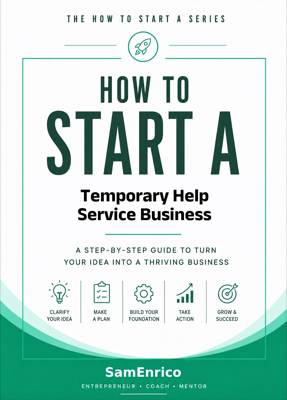 How to Start a Temporary Help Service BusinessLarkin Stormy$11.99
You may also like
 Hong Kong Handover 1997Dunn Johnnie$11.99
 Zumba For Postnatal Recovery CourseNeal Christian$11.99
 Zumba for BeginnersLadner Nikia$11.99
 YouTube Comment Mining GuideHumes Pandora$12.99
 Worry Box MeditationCarlin Rudy$11.99
 Workplace Stress MeditationNguyen Lynn$11.99
 Workplace Stress and Sleep RepairHawley Ivory$11.99
 Workplace Perfectionism CureDelaney Jeffry$11.99
 Workplace Injustice Anger GuideWallen Isabelle$11.99
 Work Addiction and Burnout LinkGreenwood Ester$11.99
 Women in Yoga and WellnessBeattie Galina$11.99
 Women in Stand Up ComedyChun Evangeline$11.99