
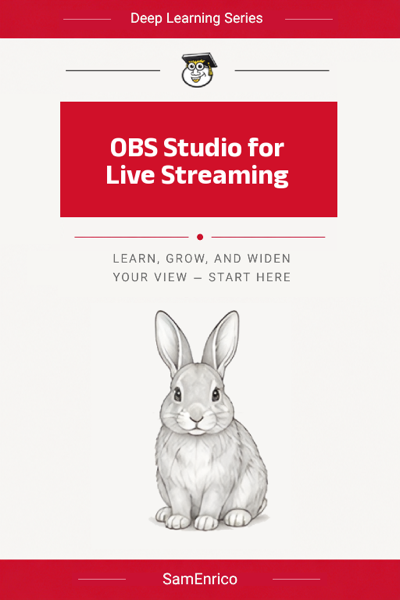
Non-FictionInformativeEducational
OBS Studio for Live Streaming eBook
A Coursebook on OBS Studio for Live Streaming
A Coursebook on OBS Studio for Live Streaming
Formats
Free sample
Chapter 1: Your Command Center–- Every great stream begins not with a camera or a game, but with a single, decisive click. The moment you launch OBS Studio for the first time, you are greeted by a grayscale grid of panels, empty windows, and a vast, dark preview area that seems to swallow your cursor. For many, this is where the journey ends before it truly begins. They close the application, defeated, convinced that streaming requires a computer science degree or an apprenticeship with a broadcast engineer. But here is the truth that separates successful streamers from the frustrated masses: OBS Studio is not complicated.
It is unfamiliar. And unfamiliarity is merely a lack of guided repetition.This chapter transforms that unfamiliarity into fluency. You will not simply memorize the names of buttons. You will understand why each panel exists, how they communicate with one another, and how to bend the interface to your will rather than the other way around. By the time you finish these pages, you will navigate OBS with the same instinctive ease that you switch between applications on your smartphone.
You will build custom workspaces for gaming, talk shows, and virtual events. You will read the status bar like a doctor reading vital signs. And you will finally feel, for the first time, that you are in control of your broadcast.Consider this chapter your flight training before takeoff. The engines are off. The parking brake is set.
But by the final paragraph, you will be taxiing to the runway, ready for everything that follows.The Philosophy of the Interface Before we touch a single button, understand this: OBS Studio was designed by broadcast engineers for broadcast engineers. The interface prioritizes function over friendliness. Every decision—from the placement of the audio mixer to the nesting of sources inside scenes—mirrors professional television production software that costs thousands of dollars per year. Open Broadcaster Software gives you that same power for exactly zero dollars, but the trade-off is a steeper initial climb.The good news is that you do not need to understand the entire mountain to reach a breathtaking view. You only need to master six primary zones.
Think of them as the cockpit instruments of a commercial airliner. A pilot does not glance at all two hundred gauges simultaneously. She scans the six that matter: altitude, airspeed, heading, vertical speed, engine health, and fuel. The rest are background context. OBS works the same way.The six critical zones are the Preview Canvas, the Scenes List, the Sources List, the Audio Mixer, the Transitions Panel, and the Controls Panel.
Each serves a distinct purpose. Each communicates with the others in predictable ways. And each can be customized, moved, or resized to match how your brain processes information.Let us tour them in the order your eyes will naturally travel.The Preview Canvas: Your Window to the World Dominating the upper right portion of the OBS window is a large, initially black rectangle called the Preview Canvas. This is not merely a video player. It is the final render of everything your audience will see at the exact moment they see it.
Every source you add, every filter you apply, every transition you trigger appears here first.Look closely at the borders surrounding the canvas. A red border indicates that you are viewing the live program output—what is currently being streamed or recorded. A yellow border indicates preview mode, where you can edit scenes and rearrange sources without affecting the live broadcast. Toggle between these modes using the Preview button located just above the canvas or by pressing the hotkey you will configure in Chapter 9. This distinction saves careers.
Imagine rearranging your webcam overlay during a live interview while the red border shows you are actually broadcasting chaos. The yellow border prevents that disaster.Right-click anywhere inside the canvas, and a context menu appears with powerful options. Disable Preview is the most valuable among them. When enabled, OBS stops rendering the canvas entirely, freeing significant GPU resources for encoding. On laptops, low-power desktops, or any system struggling with skipped frames, disabling the preview often solves the problem immediately.
This is what the introduction referred to as Performance Mode. Lock Preview prevents accidental dragging of sources, a blessing when you have finally aligned everything perfectly. Snap to Grid and Snap to Guides help align sources with precision, though most streamers rely on the transform tools covered in Chapter 2.The canvas also displays visual indicators for active sources. When you select a source in the Sources List, a colored bounding box appears around it on the canvas, complete with resize handles and rotation controls. The red square in the center allows you to move the source freely.
The corners scale proportionally. The edges scale only horizontally or vertically. Hold the Shift key while scaling to ignore aspect ratio constraints—useful for stretching a background image to fill the screen but destructive for webcams and logos.The Scenes List: Your Stage Manager To the left of the canvas resides the Scenes List. Think of scenes as different stage configurations. When a theater production moves from Act One to Act Two, the set changes.
The actors may remain the same, but the backdrop, lighting, and props transform. Scenes in OBS work identically.A typical streamer maintains between four and eight scenes:Starting Soon: An animated loop, countdown timer, and social media handles Gameplay Fullscreen: Game capture dominating the canvas, with a small webcam overlay Gameplay with Chat: Same as above but with a translucent chat window over the gameplay Just Chatting: Large webcam feed, chat box, and donation alerts prominent BRB (Be Right Back): Static image or looping video with background music Stream Ending: Credits, links, and a thank-you message Each scene is independent. You can have a hundred scenes, though beyond a dozen, navigation becomes cumbersome without hotkeys or a Stream Deck. The active scene is highlighted in blue. Double-click any scene name to rename it.
Right-click for advanced options: Duplicate creates a copy for A/B testing different layouts; Remove deletes the scene and all its sources (use with caution); Filters opens the filter panel specifically for scene-level effects like color correction or blur.The order of scenes in the list matters only for your personal organization. Unlike sources, scenes do not layer on top of each other. They replace each other entirely. However, the order affects keyboard navigation if you use the up and down arrows to switch scenes. Many streamers alphabetize their scenes or group them by function (pre-stream scenes first, active gameplay scenes next, intermission scenes last).The Sources List: Your Actors and Props To the right of the Scenes List sits the Sources List.
If a scene is the stage, sources are the actors, props, lighting instruments, and backdrop all at once. A single scene may contain anywhere from one source (a fullscreen game capture) to fifty sources (complex overlays with animated alerts, scrolling text, browser widgets, and multiple camera angles).The order of sources within this list is absolutely critical. Sources at the bottom of the list appear behind every source above them. Sources at the top appear on top of everything…
This is the end of the free sample. Get the eBook to keep going. Buy now
About this book
Details
- Author
- Broussard Marx
- Publisher
- SamEnrico
- Language
- English
- Genre
- Non-Fiction, Informative, Educational
- Released
- 2026-05-06
- Pages (approx.)
- 145
- Available as
- eBook, Audiobook

Read better in the ZLOADR app
Your eBooks on your phone or tablet. Sign in with your SamEnrico account and start reading.
More by Broussard Marx
 Confrontation Phobia Assertive GuideBroussard Marx$11.99
 Email Overload SolutionBroussard Marx$11.99
 YouTube Child Star PhenomBroussard Marx$11.99
 Uber Driver Bonuses GuideBroussard Marx$11.99
 Indian GST E Way Bill Generation GuideBroussard Marx$11.99
 Scott Neighbor InterviewBroussard Marx$11.99
 Citation Rules for Books and Journals GuideBroussard Marx$11.99
 C130 Hercules PilotBroussard Marx$11.99
 Carnegie MellonBroussard Marx$11.99
 Rommel's Ghost Division: The Desert Fox's Western Front GambitBroussard Marx$11.99
 The Algorithm That Broke the InternetBroussard Marx$11.99
 Red Dust Rising: The Untold Story of Mars' First Human FootprintBroussard Marx$11.99
You may also like
 Hong Kong Handover 1997Dunn Johnnie$11.99
 Zumba For Postnatal Recovery CourseNeal Christian$11.99
 Zumba for BeginnersLadner Nikia$11.99
 YouTube Comment Mining GuideHumes Pandora$12.99
 Worry Box MeditationCarlin Rudy$11.99
 Workplace Stress MeditationNguyen Lynn$11.99
 Workplace Stress and Sleep RepairHawley Ivory$11.99
 Workplace Perfectionism CureDelaney Jeffry$11.99
 Workplace Injustice Anger GuideWallen Isabelle$11.99
 Work Addiction and Burnout LinkGreenwood Ester$11.99
 Women in Yoga and WellnessBeattie Galina$11.99
 Women in Stand Up ComedyChun Evangeline$11.99