
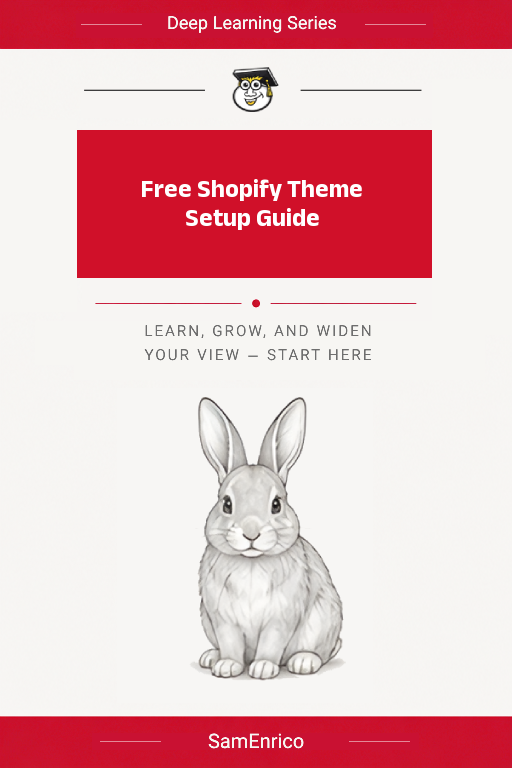
Free Shopify Theme Setup Guide eBook
Build a professional store using Dawn theme withou
Build a professional store using Dawn theme without buying premium templates.
Formats
Free sample
Chapter 1: The Blank Canvas--The most dangerous moment in building an online store isn't when you launch. It isn't when you process your first order or when you discover a bug at 2 AM. The most dangerous moment happens about thirty minutes after you install your theme, when you're staring at a screen full of stock photos of happy people wearing clothes you don't sell, drinking coffee you've never tasted, and standing in living rooms that don't exist. That moment of paralysis—the "where do I even start?" freeze—has killed more e-commerce dreams than any technical failure ever will.This chapter exists to ensure you never experience that freeze.You are about to transform a generic template into your specific foundation. But before you can build anything meaningful, you need to understand the landscape.
You need to know where your tools live, how to create a safe testing environment, and most importantly, how to clear away the noise so you're working with a blank canvas—not someone else's unfinished painting.Let's be clear about what we're building. The Dawn theme is Shopify's flagship free theme, built on what the company calls Online Store 2.0. That jargon matters less than what it means for you: sections everywhere, meaning every part of your page can be rearranged, removed, or added without touching code; faster load times because the theme was engineered for speed, not for selling you upsells; and cleaner code that makes the customizations in later chapters actually possible instead of terrifying.But a powerful tool in the wrong hands is just an expensive paperweight. This chapter puts the tool in the right hands—yours.Why Most Beginners Destroy Their First Store (And How You Won't)Before we touch a single setting, let's name the enemy. It's not Shopify.
It's not the Dawn theme. The enemy is the assumption that "just figuring it out as I go" is a valid strategy.Here's what typically happens. A new store owner logs into Shopify, clicks around until they find the theme editor, and starts dragging and dropping. They change colors, upload a logo, add some products, and within an afternoon, they've got something that looks like a store. They remove the password protection, tell their friends to check it out, and then wonder why nobody buys anything.The problem isn't the design.
The problem is that they built on top of a live site while customers could theoretically wander in. They made changes without backups. They tested things on the same version their potential customers were seeing. And when something broke—when a section disappeared or a button stopped working—they had no way to go back.You're not going to make that mistake. This chapter walks you through a deliberate, methodical setup process that creates safety rails before you start designing.Step One: Finding and Installing Dawn Let's start at the beginning.
You've signed up for Shopify. You've chosen a plan (the Basic plan at $29 per month is all you need for at least your first year; anyone telling you otherwise is trying to sell you something). You've confirmed your email address. Now you're looking at the Shopify Admin dashboard—that dark left-hand sidebar with icons for Orders, Products, Customers, and a dozen other things you'll learn over time.Look at the bottom of that left sidebar. You'll see a section labeled "Sales Channels." Under that, click "Online Store." This is the command center for everything your customers see when they visit your website.You should see a preview of whatever theme Shopify automatically installed for you—likely something called "Dawn" already, but if you've been experimenting, you might see a different default theme.
Either way, we're going to start fresh.Click the "Themes" button under the Online Store header. This takes you to the Theme Library, where all your themes live. You'll see a section labeled "Current theme" – that's the one your customers see if your store is live. Below that, you'll see "Theme library" – a collection of themes you've added but aren't actively showing to customers.Look for a button that says "Add theme" and click it. From the dropdown, select "Add from Shopify." This opens the free theme store—a collection of about a dozen free themes and hundreds of premium ones.
We're ignoring the premium ones entirely, because as you'll discover throughout this book, they're expensive shortcuts that usually create more problems than they solve.Type "Dawn" into the search bar. You'll see it appear—likely the first result, with a bright blue "Try theme" button. Click "Add" instead. This installs Dawn into your theme library without publishing it to your live store.You now have Dawn sitting safely in your library, ready for you to build on. Notice that it has a status of "Unpublished." This is exactly where we want it.The Critical Distinction: Published vs.
Unpublished Themes This distinction is so important that I want you to write it down, screenshot it, or tattoo it on your forearm—whatever helps you remember.A published theme is the version of your store that every single visitor sees. Every customer, every random browser, every search engine crawler. When you make a change to a published theme, that change goes live immediately. There's no review process, no "are you sure?" confirmation that actually matters. Click a button, break your store, and your customers see the broken version until you figure out how to fix it.An unpublished theme is your sandbox.
You can drag, drop, delete, and destroy to your heart's content, and absolutely no one will see the results except you through the preview button. You can make mistakes. You can experiment. You can try something wild, decide you hate it, and start over without anyone ever knowing.Here's the rule that will save you countless hours of frustration: never, ever edit your published theme directly. Always do your work in an unpublished copy, test thoroughly, and only then make it live.You've already installed Dawn as an unpublished theme.
Good. Now we're going to go one step further and create a dedicated development environment—a completely separate version that exists solely for testing.Step Two: Creating Your Development Theme Go back to your Theme Library. You should see Dawn listed under "Unpublished themes." Hover over its thumbnail—you'll see three dots appear in the corner. Click those dots, then select "Duplicate."Shopify will create an exact copy of Dawn, naming it "Dawn - Copy" by default. Rename this duplicate immediately.
Click the three dots again, choose "Rename," and type "Development - Dawn." Then click "Save."You now have two unpublished Dawn themes: the original (which we'll call your "Master" copy) and the duplicate (your "Development" theme). Here's how they'll work together for the rest of this book:Your Development theme is where you'll do everything we discuss in these chapters. Every change, every customization, every experiment happens here. If something breaks, you simply delete the Development theme and create a fresh duplicate from your Master copy. No harm, no foul.Your Master copy stays pristine.
It never gets edited directly. It's your emergency reset button—the clean, known-good version you can always return to if your experiments go off…
This is the end of the free sample. Get the eBook to keep going. Buy now
About this book
Details
- Author
- Wingate Ashton
- Publisher
- SamEnrico
- Language
- English
- Genre
- Non-Fiction, First 30 Days
- Released
- 2026-05-30
- Pages (approx.)
- 150
- Available as
- eBook, Audiobook

Read better in the ZLOADR app
Your eBooks on your phone or tablet. Sign in with your SamEnrico account and start reading.
More by Wingate Ashton
 Cocaine Psychosis Recovery GuideWingate Ashton$11.99
 Forgiveness After Assault GuideWingate Ashton$11.99
 1031 Exchange Forced Sale ExceptionsWingate Ashton$11.99
 Number Chunking TechniquesWingate Ashton$11.99
 Resume Photo Inclusion GuideWingate Ashton$11.99
 Autumn Leaf PileWingate Ashton$11.99
 Commercial Real Estate Broker GuideWingate Ashton$11.99
 USS Missouri SailorWingate Ashton$11.99
 Jeff Bezos KindleWingate Ashton$11.99
 The Silk and the Scepter: A Queen’s Secret WarWingate Ashton$11.99
 The Last Library of Alexandria: A Digital Dark AgeWingate Ashton$11.99
 Bones, Badges, and the Beast of Bray RoadWingate Ashton$11.99
You may also like
 Website Launch For New LLCStrunk Tracee$12.99
 Shopify Market Expansion GuideGaffney Jude$12.99
 Power Backup Solutions for Philippine VAsPearce Eldon$12.99
 Feedback License Clause TemplateCrum Ashli$12.99Feedback License Clause TemplateCrum Ashli$12.99Feedback License Clause TemplateCrum Ashli$12.99Feedback License Clause TemplateCrum Ashli$12.99Feedback License Clause TemplateCrum Ashli$12.99Feedback License Clause TemplateCrum Ashli$12.99Feedback License Clause TemplateCrum Ashli$12.99Feedback License Clause TemplateCrum Ashli$12.99
 Channel Distribution On One PagePetersen Narcisa$12.99