
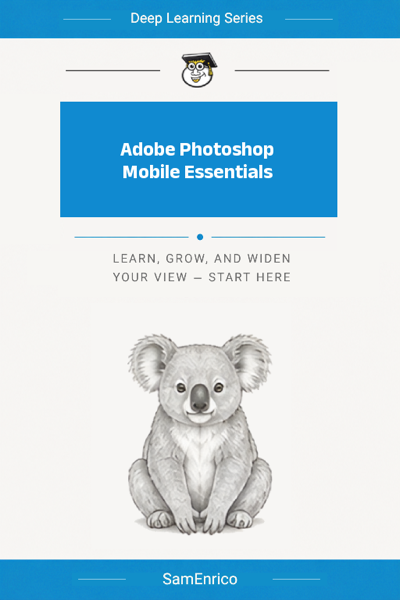
Non-FictionInformativeEducational
Adobe Photoshop Mobile Essentials eBook
A Coursebook on Adobe Photoshop Mobile Essentials
by Martin Sonya
A Coursebook on Adobe Photoshop Mobile Essentials
Formats
Free sample
Chapter 1: Beyond the Laptop...-- Adobe Photoshop isn't just software anymore. It's a mindset, a creative ecosystem that has escaped the confines of the desktop and now lives in your pocket. For nearly thirty years, the name "Photoshop" has been synonymous with image manipulation—a powerful, sometimes intimidating tool reserved for professionals with high-end computers, external hard drives, and the desk space to accommodate it all. But that era is ending. We are living through a fundamental shift in how digital content is created, and at the center of this revolution is a device you already own: your smartphone.Welcome to Adobe Photoshop Mobile Essentials.This book is not a condensed version of a desktop manual.
It is not a list of compromises or a guide to "getting by" until you can get back to your computer. Instead, it is a complete reimagining of what image editing can be when the mouse is replaced by your fingertip, when the keyboard is replaced by gestures, and when the concept of a "file" becomes something that lives everywhere and nowhere at once. Whether you are a social media manager racing to meet a deadline, a photographer who wants to edit on the train home, a small business owner creating product images on the sales floor, or an artist exploring new forms of expression, this chapter will reframe everything you think you know about Photoshop.Before we dive into specific tools or techniques, we must first understand the terrain. The mobile version of Photoshop is not a lesser app; it is a different app. It has been rebuilt from the ground up for touch, for speed, and for a world where we are always connected (and sometimes, frustratingly, not).
To master it, you must let go of old habits. You must stop looking for the exact location of a desktop menu and start thinking in terms of workflow efficiency. The question is no longer "How do I do this the way I always have?" but rather "What is the fastest, most intuitive way to achieve this result on this device?"This chapter will guide you through three critical foundations. First, we will conduct an honest, detailed audit of the "gap"—exactly which desktop tools have survived the journey to mobile, which have been simplified, and which have been left behind (and why you likely won't miss them). Second, we will take a visual tour of the mobile interface, revealing hidden swipe menus and context-sensitive toolbars that only reveal themselves when you need them.
Finally, we will establish a professional-grade file management system using Adobe Cloud Documents, local storage, and your camera roll, ensuring that you never lose work and can move seamlessly between devices.By the end of this chapter, you will no longer see your phone as a limitation. You will see it as a liberation.The Honest Audit: What You Gain and What You Lose Let us address the elephant in the room immediately. If you are coming from decades of desktop Photoshop experience, you will notice that some familiar faces are missing. The Pen Tool—that vector-based precision instrument beloved by graphic designers—does not exist in the mobile app in its traditional form. The Channels panel, where color information and complex masks live, is not present.
The full Filter Gallery, with its dozens of artistic effects, has been streamlined. And if you were hoping to run complex batch processes or scripts, you will need to adjust your expectations.At first glance, this list of absences might seem alarming. But here is the secret that professional mobile editors have learned: you rarely needed those tools in the first place. The Pen Tool was designed for a mouse, a cursor that can click with sub-pixel precision. On a touch screen, where your finger is a blunt instrument compared to a mouse pointer, the Pen Tool would be frustratingly slow.
Instead, mobile Photoshop has invested heavily in AI-powered selection tools like "Select Subject" and "Refine Edge," which often accomplish the same task in two taps that used to take two minutes of careful pathing.Similarly, the Channels panel, while powerful, was always a deeply technical, almost engineering-oriented feature. The mobile app prioritizes visual, gesture-based controls. Adjustment layers, blend modes, and layer masks—the true workhorses of non-destructive editing—are all present and, in many cases, more intuitive than their desktop counterparts. The tools you actually need for 95% of real-world editing—cropping, retouching, color grading, compositing, and text—are not only present but have been optimized for speed.So what have you gained? You have gained context.
Your editing app now lives on the same device that takes your photos, manages your social media, and communicates with your clients. You can shoot a product photo, remove its background, add typography, and post it to Instagram without ever transferring a file. You have gained portability. You can edit a high-resolution composite while waiting for coffee, on an airplane, or lying on your couch. You have gained simplicity.
The mobile interface hides complexity until you need it, reducing visual clutter and allowing you to focus on the image itself.The most important mindset shift is this: stop asking "What is missing?" and start asking "What is now possible?"A Visual Tour of the Gesture-Based Interface Launch Adobe Photoshop on your mobile device. Take a moment to look at the screen. If you are expecting the chaos of desktop toolbars—the options bar at the top, the toolbox on the left, the panels on the right, and the document in the middle—you will be surprised. The mobile interface is almost aggressively minimal. At first glance, you see only your image and a handful of icons.
This is by design.Let us start from the bottom and work our way up. Along the bottom edge, you will find the context-sensitive toolbar. The word "context-sensitive" is crucial here because the contents of this bar change depending on what tool you have selected. If you have the Brush tool active, this bar shows brush size, hardness, and opacity. If you have the Crop tool active, it shows aspect ratio presets and the rotate controls.
This dynamic interface keeps your most relevant options within easy reach of your thumb without cluttering the screen with irrelevant controls.In the bottom right corner, you will find the Layers icon—two overlapping squares. Tapping this opens the Layers panel, which slides up from the bottom of the screen. Unlike the desktop version, where the Layers panel floats permanently on the right, the mobile version appears only when you need it, then disappears to give you back your screen real estate. This is a recurring theme: hide until needed.The top of the screen holds additional controls. In the top left, you will find the back arrow (to return to the Home screen), the document name, and the cloud sync status indicator.
A small cloud icon with a checkmark means your work is safely saved to Adobe's servers. A spinning cloud means it is syncing. An exclamation mark means you are offline and working on a local copy—more on that later.In the top right, you will find the Share/Export button (a box with…
This is the end of the free sample. Get the eBook to keep going. Buy now
About this book
Details
- Author
- Martin Sonya
- Publisher
- SamEnrico
- Language
- English
- Genre
- Non-Fiction, Informative, Educational
- Released
- 2026-05-18
- Pages (approx.)
- 153
- Available as
- eBook, Audiobook

Read better in the ZLOADR app
Your eBooks on your phone or tablet. Sign in with your SamEnrico account and start reading.
More by Martin Sonya
 The Railroad SiblingsMartin Sonya$11.99
 Wedding Planner High Stress GuideMartin Sonya$11.99
 Self Hypnosis for AssertivenessMartin Sonya$11.99
 NVC For Regret ProcessingMartin Sonya$11.99
 Whispers in the Sky: The Lost Balloonists of 1897Martin Sonya$11.99
 How to Start a Directory - Telephone - Distribution on a Contract Basis BusinessMartin Sonya$11.99
 How to Produce BindersMartin Sonya$11.99
 Frugal Freemium Hosting GuideMartin Sonya$12.99
You may also like
 Hong Kong Handover 1997Dunn Johnnie$11.99
 Zumba For Postnatal Recovery CourseNeal Christian$11.99
 Zumba for BeginnersLadner Nikia$11.99
 YouTube Comment Mining GuideHumes Pandora$12.99
 Worry Box MeditationCarlin Rudy$11.99
 Workplace Stress MeditationNguyen Lynn$11.99
 Workplace Stress and Sleep RepairHawley Ivory$11.99
 Workplace Perfectionism CureDelaney Jeffry$11.99
 Workplace Injustice Anger GuideWallen Isabelle$11.99
 Work Addiction and Burnout LinkGreenwood Ester$11.99
 Women in Yoga and WellnessBeattie Galina$11.99
 Women in Stand Up ComedyChun Evangeline$11.99